

Ilham Aliyev
We believe that trust needs to be earned over years, and it can be lost with one wrong step.
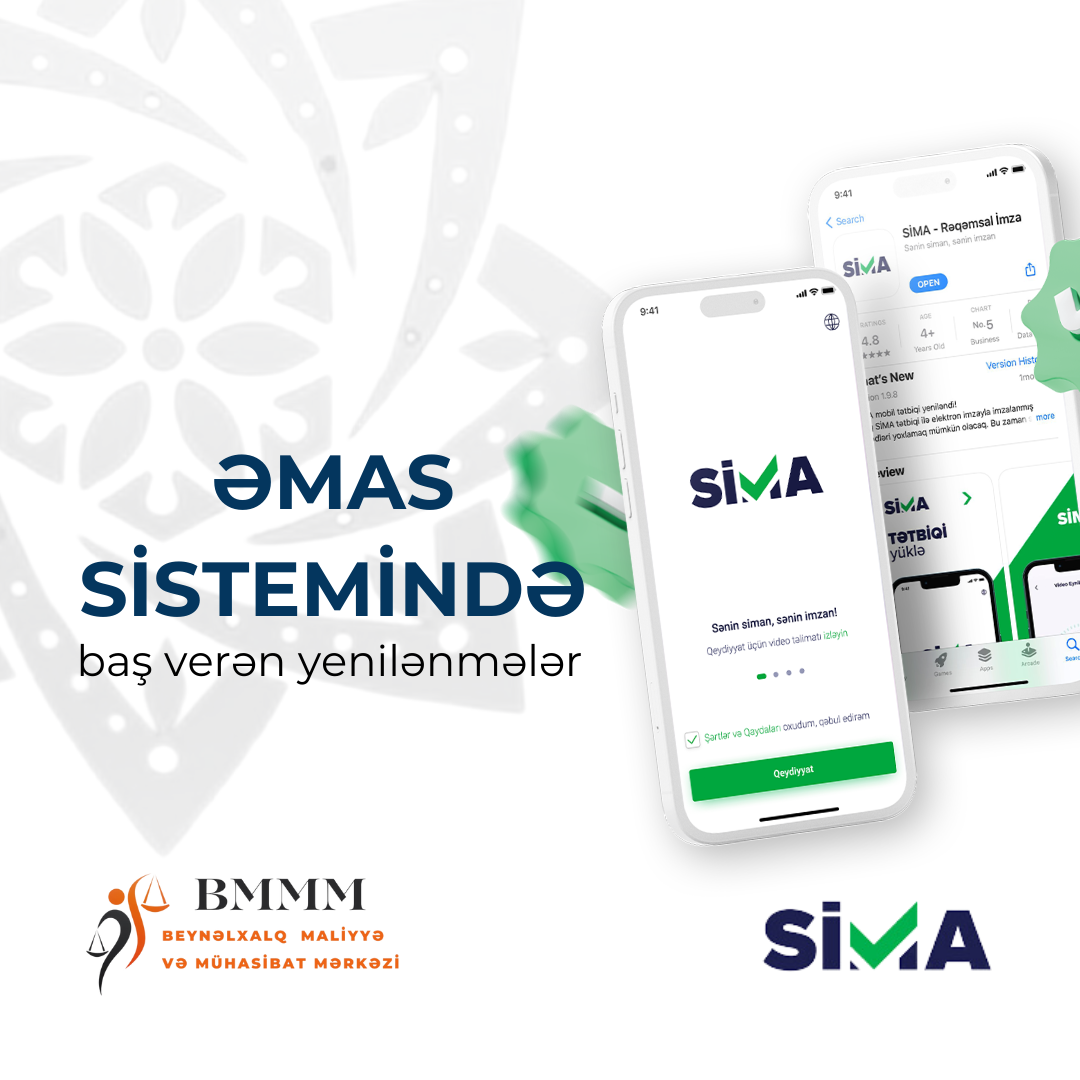
Download the SİMA mobile application using the QR code.
During registration, select the type of ID card and submit it.
Grant camera access.
After completing the facial recognition step, set a PIN code.
Tap the three horizontal lines located at the top left of the screen and open the “Services” section.
From the “Services” section, enter the “Digital Login” menu.
In the “Digital Login” menu, select “EMAS – Employment Relations and Employment Subsystem.”
On the opened page, click “Digital Login.”
From the same page, select the EMAS section.
Then, after Digital Login, select “Continue with SİMA Signature.”
The EMAS page will open; tap the four horizontal lines located at the top right of the screen.
From this page, select the EMAS section.
Then click “Online Employment Contract,” and below it select “Online Employment Contract Register,” then tap “Pending Online Employment Contracts.”
Your employment contract will appear on the new page. Swipe left and click the downward arrow at the far end, then select “Sign.”
Using another device (computer, phone, etc.), open the EMAS website in a browser.
On the homepage, click “Digital Login.”
Choose “With SİMA Digital Signature” as the login method.
A QR code will appear on the screen. On your mobile phone where you registered with SİMA, tap the “QR” section at the bottom of the SİMA app.
Scan the QR code displayed on the other device.
After scanning the QR code, the message “Confirmed” will appear.